Start your bot in 4 steps
No coding, no weird commands. You download, double-click and paste your details into a window. Done.
Download and open the folder
In your account, click Download the bot. A .zip file downloads.
You get a folder with the bot files inside.
Start the bot
Inside the folder, find the bot file you bought: INICIAR-SNIPER (or INICIAR-COPYTRADING). Open it like this, depending on your computer:
1. Double-click the bot file (INICIAR-SNIPER.command or INICIAR-COPYTRADING.command). macOS will say it "cannot verify" the app — that's normal (not signed yet). Close the dialog.
2. Open System Settings → Privacy & Security. Scroll to the bottom: you'll see "… was blocked…" with an “Open Anyway” button. Click it and confirm with your password or Touch ID.
3. Double-click the file again → now an Open button appears. Click it. (Only needed the first time.)
4. A black window opens (the Terminal) — that's normal, leave it. In a moment the panel opens in your browser.
Quick trick: open the Terminal app, type xattr -cr and a space, drag the POLBOT folder into the window and press Enter — unblocks everything at once.
1. Double-click INICIAR-SNIPER.bat.
2. If a blue "Windows protected your PC" screen appears: click More info → Run anyway.
3. A black window opens — leave it open. In a moment the panel opens in your browser.
The first time it takes a minute or two setting itself up (this happens only once). You don't need to type anything in the black window: just leave it open while you use the bot.
Follow the setup wizard
The window guides you step by step, in English. Choose Practice to try it with no setup, or Real and it asks you for:
· Your license key (the one from your purchase).
· Your wallet private key and, for email login, your deposit address.
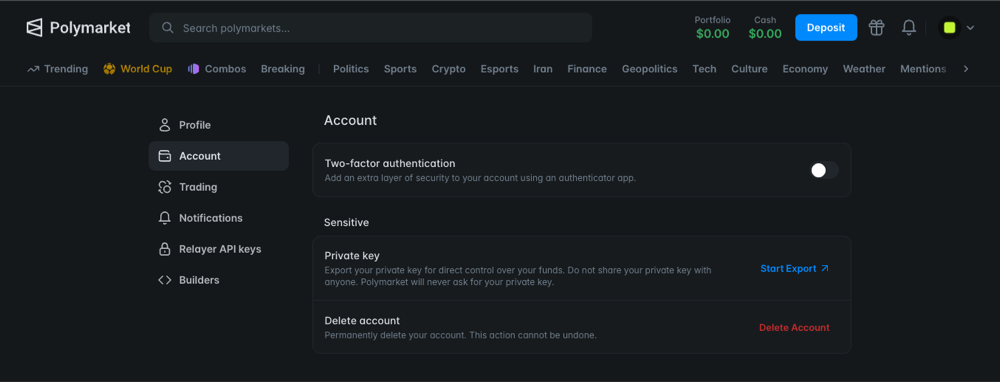
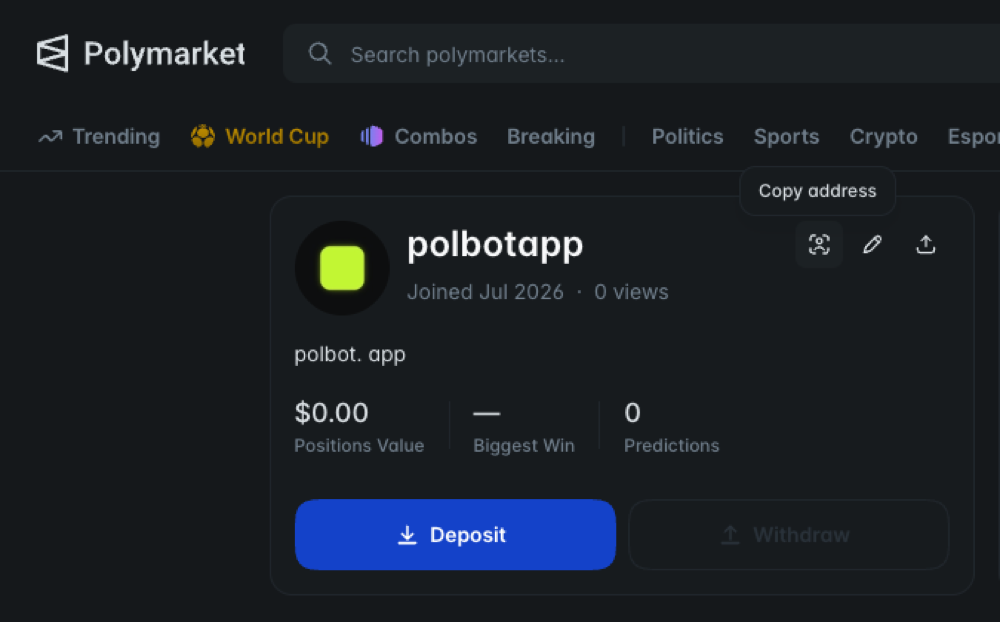
No files to open or edit. Everything is pasted into that window.
Practice first. Real when you want.
The wizard offers two modes:
· Practice → the bot runs a simulation, with fake money on the real market. Watch it for a while: you'll see it enter, close and its result. Zero risk.
· Real → once you're confident, this trades with your real money.
That's it.
While the bot runs, keep the black window open. To stop it, click Stop in the panel. Any questions, email us.
Go to my account →